> For the complete documentation index, see [llms.txt](https://gamelauncher.cloud/help/llms.txt). Markdown versions of documentation pages are available by appending `.md` to page URLs; this page is available as [Markdown](https://gamelauncher.cloud/help/extensions/godot-extension.md).
# Godot Extension
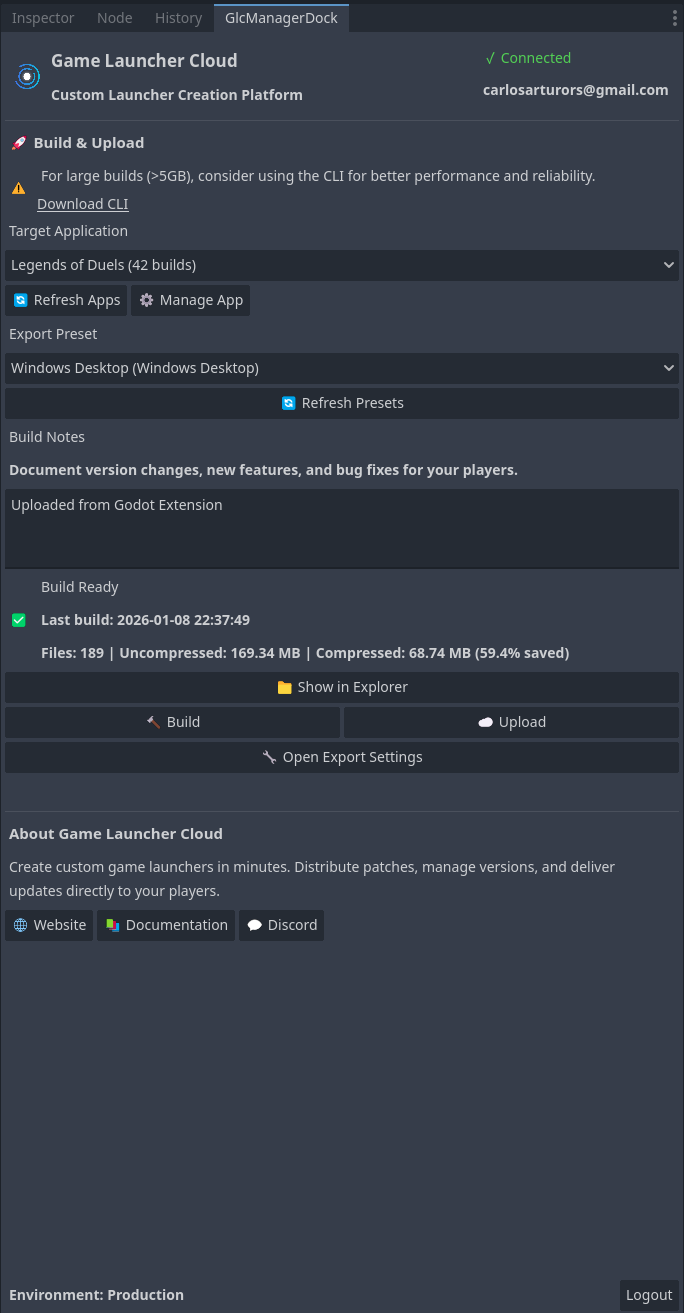
The **Game Launcher Cloud Godot Extension** allows you to build and upload your Godot game builds directly from the Godot Editor to Game Launcher Cloud.
## Features
* **Build & Upload**: Build your game and upload to Game Launcher Cloud in one click
* **Multiple Environments**: Support for Production, Staging, and Development environments
* **API Key Management**: Securely store different API keys per environment
* **Build Monitoring**: Real-time build status tracking and notifications
* **Easy Setup**: Quick wizard to get started in minutes
* **Cross-Platform**: Support for Windows, Linux, and macOS builds
## Installation
### From Godot Asset Library (Recommended)
1. Open your Godot project
2. Go to **AssetLib** tab at the top of the editor
3. Search for "**Game Launcher Cloud**"
4. Click on the extension and press **Download**
5. Click **Install** and select your project
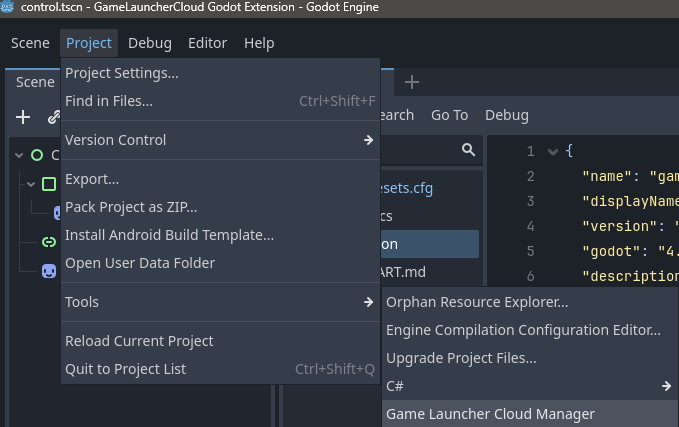
6. The extension will be available under **Project > Tools > Game Launcher Cloud**
**Direct Link**: [Game Launcher Cloud on Godot Asset Library](https://godotengine.org/asset-library/asset/4663)
### Manual Installation from GitHub
1. Download the latest release from [GitHub Releases](https://github.com/GameLauncherCloud/GameLauncherCloud-GodotExtension/releases)
2. Extract the `addons/game_launcher_cloud` folder to your project's `addons` folder:
```
YourProject/addons/game_launcher_cloud/
```
3. In Godot, go to **Project > Project Settings > Plugins**
4. Enable the **Game Launcher Cloud** plugin
5. The extension will be available under **Project > Tools > Game Launcher Cloud**
## Quick Start
### First Time Setup
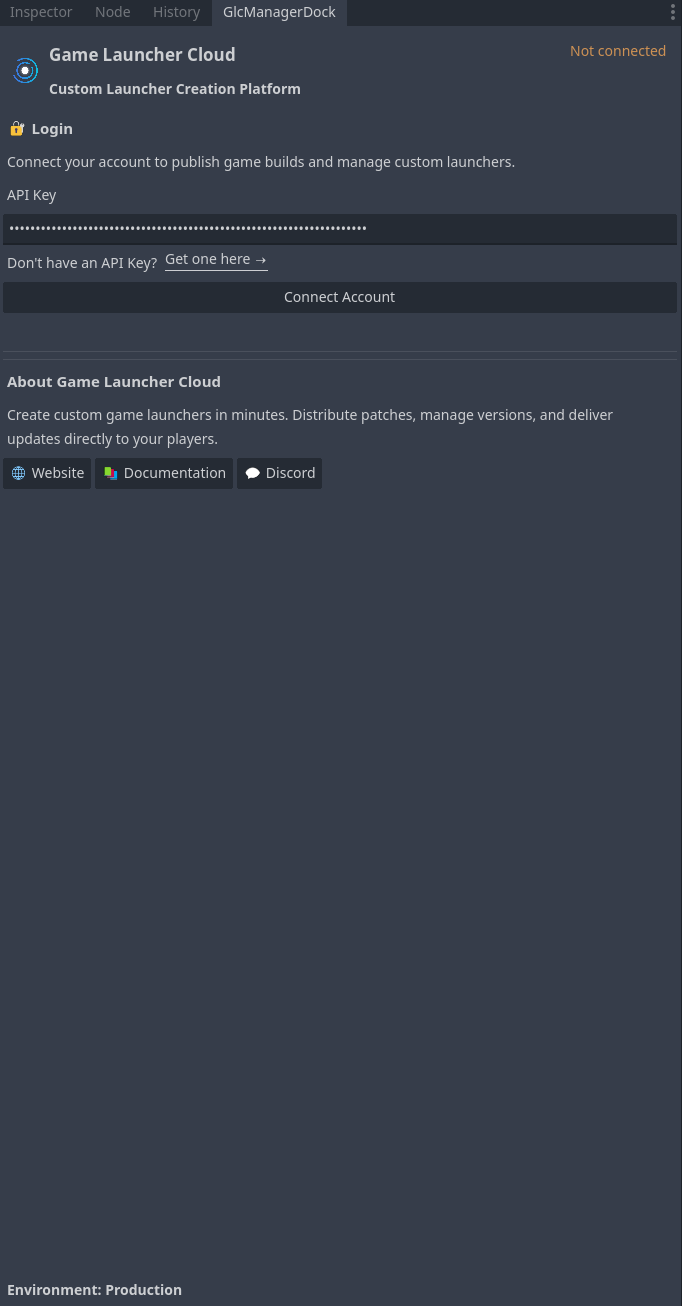
1. Open the **Game Launcher Cloud Manager** from `Project > Tools > Game Launcher Cloud Manager`
2. Enter your API Key ([Get API Key](https://app.gamelaunchercloud.com/user/api-keys))
3. Select which application to upload builds to
4. Choose your target environment (Production, Staging, or Development)
Build notes are visible in the **Game Launcher Cloud** dashboard and can help track changes between versions.
## Troubleshooting
### API Key Issues
**Problem**: "Invalid API Key" error
**Solution**:
* Verify your API key at [API Keys page](https://app.gamelaunchercloud.com/user/api-keys)
* Ensure the API key has proper permissions
* Check that you're using the correct environment
### Build Upload Fails
**Problem**: Upload fails or times out
**Solution**:
* Check your internet connection
* For large builds (>5GB), consider using the [CLI tool](https://docs.gamelaunchercloud.com/applications/cli-releases/)
* Verify you have enough storage space in your plan
### Export Preset Not Found
**Problem**: "No export preset found" error
**Solution**:
* Go to **Project > Export** in Godot
* Add export presets for your target platforms
* Configure the presets with required settings
## Best Practices
### Build Optimization
1. **Compress Textures**: Use appropriate texture compression for your target platforms
2. **Remove Debug Symbols**: Use Release builds for production
3. **Strip Unused Resources**: Remove unused assets before building
4. **Test Export Presets**: Verify export presets work correctly before uploading
### Version Management
1. Use semantic versioning (e.g., 1.0.0, 1.1.0, 2.0.0)
2. Write clear build notes for each upload
3. Test in Development/Staging before pushing to Production
4. Keep track of which version is in each environment
### Security
1. Never commit API keys to version control
2. Use different API keys for different environments
3. Rotate API keys periodically
4. Limit API key permissions to only what's needed
## License
This extension is licensed under the MIT License. See the [LICENSE](https://github.com/GameLauncherCloud/GameLauncherCloud-GodotExtension/blob/main/LICENSE) file for details.